
Your Facebook account holds years of memories—photos, messages, connections you actually care about. That’s exactly why knowing how to change your Facebook password shouldn’t be an afterthought. Weak passwords are basically an open door for hackers. Noticed anything weird lately—login alerts you didn’t trigger, messages you don’t remember sending, unfamiliar login alerts, or messages you didn’t send, it’s a clear sign your password needs an update. Even without a security scare, changing your password every few months is a smart habit that keeps your account safe from data breaches and unauthorized access.
The good news? Give me just a minute—that’s all it takes. Facebook app, browser, phone, laptop, doesn’t matter which. The same quick fix works everywhere. Let’s get into it. I’ll walk you through the whole process, step-by-step, so whether you’re on desktop or mobile, you’ll have your account locked down in no time.
Why You Should Change Your Facebook Password
Before we start, let me tell you something: many people think that I have kept my Facebook password quite strong, so do I still need to change it?
Short answer: yes, probably. A strong password today doesn’t stay strong forever, and a few situations make updating it non-negotiable.
Suspected hacking or unauthorized login
Login alerts from a device you don’t recognize. Posts or messages you swear you never sent. Friend requests you didn’t make. Any of these show up, and someone else is probably in your account.
Don’t wait around—change your password right away. That’s the fastest way to shut them out.
Reusing passwords across sites
Same password for Facebook, email, everything?
A lot of people do this for convenience—but here’s the catch: one breach anywhere, and hackers now have the key to every account tied to that password, Facebook included.
Give each platform its own password. It’s a small hassle now that saves you a much bigger headache later.
Regular security maintenance (every 3-6 months)
No red flags? Still update it every three to six months anyway—think of it as routine maintenance. The logic is simple: even if your password leaks somewhere without you knowing, it won’t stay useful to anyone for long.
How to Change Your Facebook Password on Any Device in 5 Minutes
Okay. Now I will teach you how to change your Facebook password. I am giving live screenshots every step for easy understanding.
No matter what device you’re using, the process for changing your Facebook password follows the same basic path:
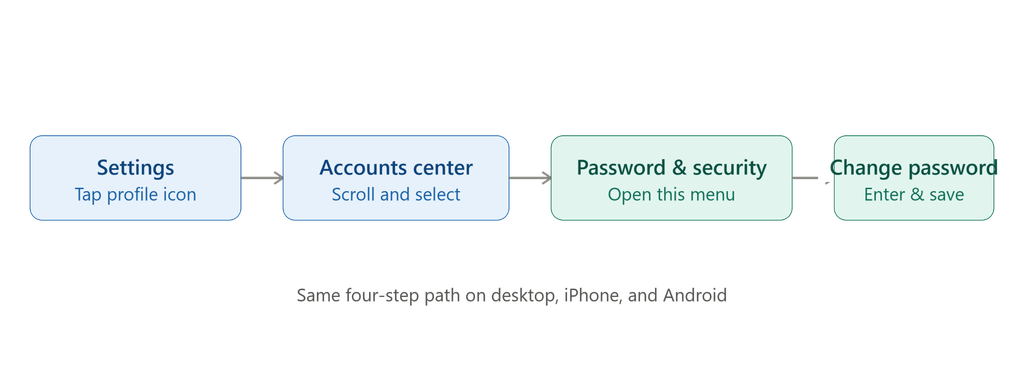
Below is the step-by-step breakdown, along with any small differences depending on whether you’re on an iPhone, Android, or Mac.
Step-by-Step (Works for Desktop and Mobile)
- Open Facebook and log into your account.
- Tap or click your profile picture in the top corner to open the menu.

- Select Settings & Privacy, then click Settings.
- Scroll down and select – Accounts Center.
- Tap Password and Security.

- Tap Change Password. Managing more than one account? Pick the right one first, then punch in your current password.

- Now type your new password and confirm it. You’ll see either “Save changes” or “Update password”—tap that, and you’re set.

That’s it—your password is updated across all logged-in sessions.
For iPhone
On iPhone? Same steps, just tap your profile picture in the top-left instead. Open the app, hit Settings, then Accounts Center like before. One extra thing—iOS might ask for Face ID or Touch ID before it lets you save the new password.
For Android
On Android, the layout is nearly identical, though the profile icon may appear in the top-right instead of the top-left, depending on your app version. Follow the same Settings → Accounts Center → Password and Security path. If prompted, you may need to re-enter your current password before Facebook allows the update to go through.
New Topic : Latest DecoratorAdvice .com
For Mac
On a Mac (or any desktop browser), log in to Facebook through your browser rather than the app. Click your profile picture in the top-right corner, then follow the same steps. Desktop users will see the full Accounts Center as a dedicated settings page rather than a pop-up menu, but the options and order remain the same.
How to Change Facebook Password Using Mobile Browser | No App Needed
Don’t have the Facebook app installed, or simply prefer not to use it? You can still change your Facebook password directly from your phone’s browser—no download required.
- Open Chrome, Safari, whatever browser you’ve got—head to facebook.com.
- Not logged in already? Sign in with your username and password first.
- See those three lines in the top-right corner? Tap that menu icon.
- Scroll down a bit, hit Settings & Privacy, then Settings.
- From there, go to the Accounts Center → Password and Security.
- Hit Change Password. Type your current one, then your new password (twice, to confirm), and you’re done.
- Tap Save Changes to finish.
One thing to note: the mobile browser version of Facebook can look slightly different from the app, with menus sometimes tucked into a “See More” or hamburger icon rather than displayed upfront. If you don’t see an option right away, look for a collapsed menu—it’s usually just one tap away. Once saved, your new password takes effect immediately, and you’ll need it the next time you log in on any device.
What to Do If You Forgot Your Facebook Password | Recover Safely in 2 Steps
Forgot your password? No big deal—you’re not locked out forever. Just two quick steps and you’re back in.
Step 1: Use the “Forgotten Password” Link
Look for “Forgotten password?” right under the password field—tap it. Facebook will want your email, phone number, or username next, just to confirm which account is yours.
Step 2: Verify Your Identity
Facebook finds your account and sends a code—email, text, or through a trusted contact if you’ve set one up. Pop that code in, and boom, you can set a brand new password right there.
If you no longer have access to your linked email or phone number, the trusted contacts feature—friends you’ve designated in advance—can help verify your identity and restore access.
Tips for Creating a Strong Facebook Password
Think of your password as the front door lock—worth spending a few extra seconds getting right.
- Go long, not complicated. 12-16 characters beats a short password stuffed with symbols, every time.
- Mix it up. Upper case, lower case, numbers, a symbol or two.
- Keep it impersonal. Birthdays, pet names, anything on your profile—hackers try these first.
- Don’t repeat passwords. One site gets hacked, and if you’re reusing that password, everything else falls too.
Good, you’ve changed your password. Now two more things, and your account’s actually locked down.
What to Do After Changing Your Password
Changing your password is a great first step, but a couple of follow-up actions will lock down your account even further.
Log Out of Other Devices
After updating your password, head back to Settings → Accounts Center → Password and Security, and look for Where You’re Logged In. This shows every device currently signed into your account. If you spot a device you don’t recognize, tap it and select Log Out to immediately end that session.
Enable Two-Factor Authentication (2FA)
Turn on two-factor authentication too—it’s worth the extra ten seconds. Basically, logging in from a new device means you’ll also need a code, either texted to you or from an authenticator app. So even if someone does get your password, they’re still stuck without that second code.
Frequently Asked Questions (FAQ)
How often should I change my Facebook password?
Every three to six months is a solid rule of thumb. But don’t wait that long if something feels off—a login alert you didn’t trigger, a security warning, or just a gut feeling that someone else might be in your account. Change it right away in that case.
Can I change my password without logging in?
Yep. Locked out, forgot your password—whatever the reason, just hit the “Forgotten password?” link on the login screen. Facebook checks its really you through email, phone, or a trusted contact, then lets you set a fresh password right there.
What if the “Change Password” option isn’t showing?
Annoying, but usually a quick fix. Update the app, clear your cache, or just log out and back in. Still stuck? Try the mobile browser version instead of the app—that usually does the trick.
Will changing my password log me out of Messenger too?
Pretty much always, yeah. They’re tied together, so a password change kicks you out of Messenger on every device. You’ll just need to log back in with the new one.
Conclusion
That’s really it—changing your Facebook password takes a few minutes, tops, no matter what device you’re on. Settings, Accounts Center, update, done. Turn on two-factor authentication too, if you haven’t already; it’s the extra layer that saves you when a password alone isn’t enough.
Passwords aren’t a set-it-and-forget-it thing. Bookmark this page. You’ll probably need it again sooner than you think.
